
Creating and managing users
Effective employee management is the foundation of every company. In RCPonline you can easily add new users, assign appropriate permissions, and configure their profiles so they meet your organization’s needs. In this article, we’ll present the process of manually adding employees, importing a user list, and other features related to personnel management.
1. How to add an employee manually?
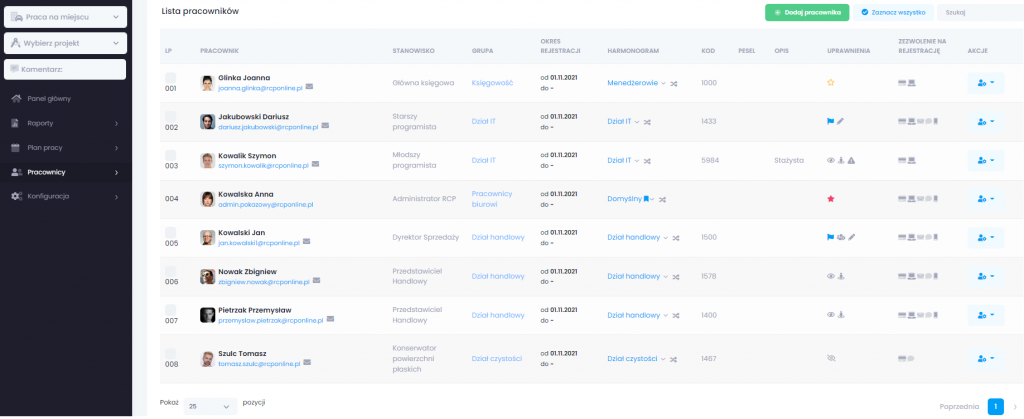
The manual employee add process is intuitive and allows full profile personalization.
Path:
Pracownicy → Lista pracowników → Dodaj pracownika
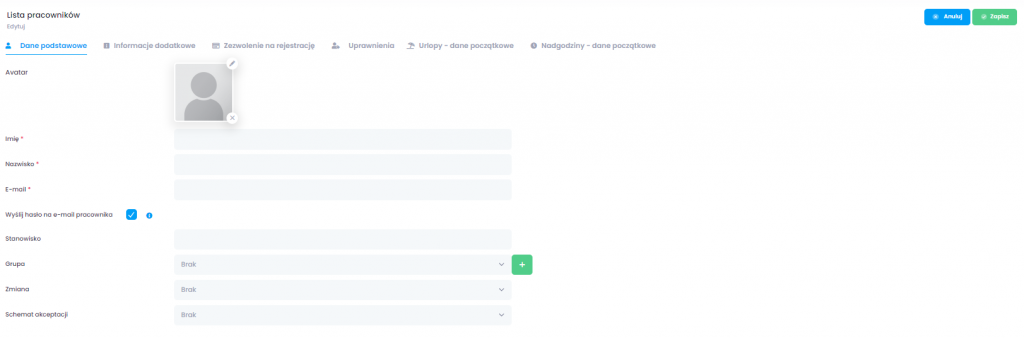
Basic information:
First name, last name, email address (optional — you can use a placeholder if the employee doesn’t have one).
Option “Send password to the employee’s email” (if a real email address was provided).
Position, group, shift, approval scheme (optional).
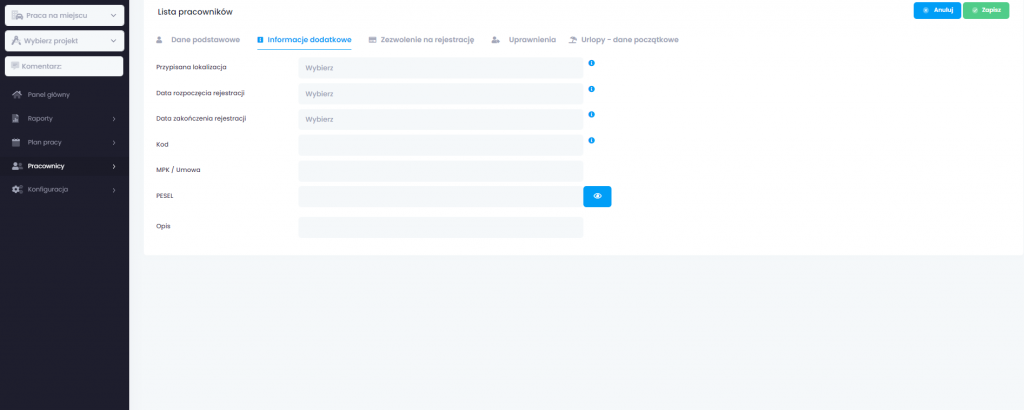
Additional information:
Location, registration start/end date.
Employee identifier code, contract number, PESEL (optional).
Registration permissions:
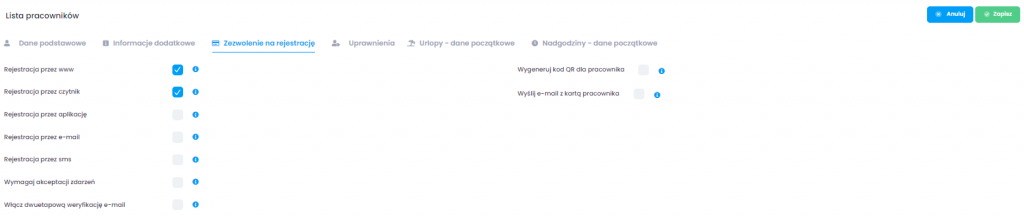
- Choose registration methods:
- WWW
- Reader
- App
- SMS
- Option to enable two-step verification, generate a QR code, or an employee card.
- Choose registration methods:
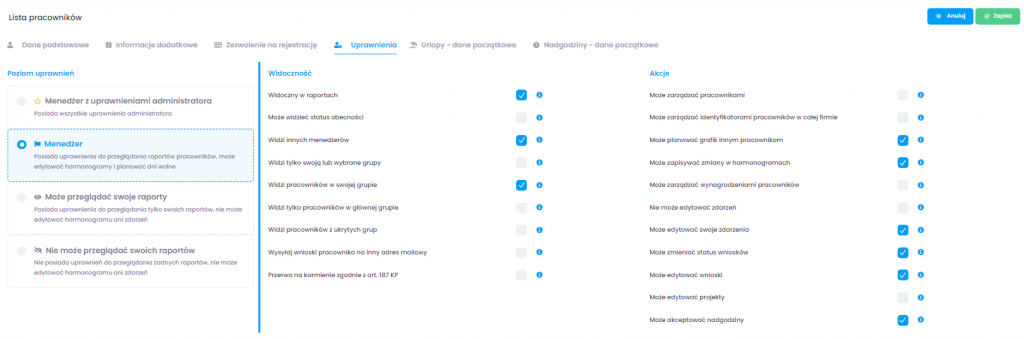
Permissions:
Assign one of four permission levels:
Manager with administrator permissions – for owners and co-owners.
Manager – for people managing a team.
Can view own reports – for employees with access to their own data.
Cannot view own reports – for employees with minimal access.
Leave and overtime:
Enter initial leave data (carried over, used, first year of work).
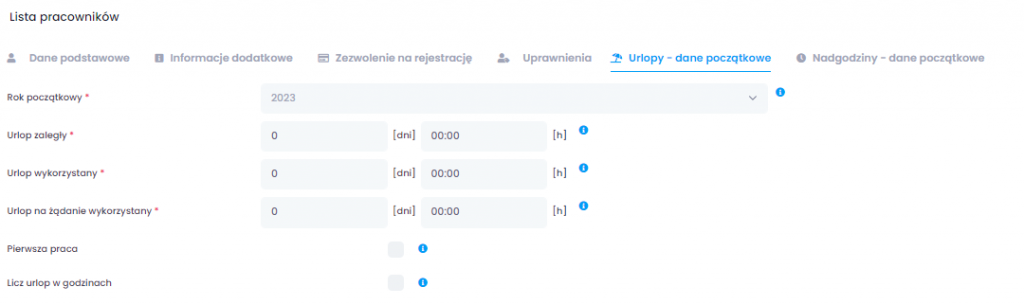
Add overtime data (e.g., hours not settled in the system).

📌 Tip
With detailed configuration, you can precisely tailor each employee’s capabilities to their role in the company.
2. Importing the employee list
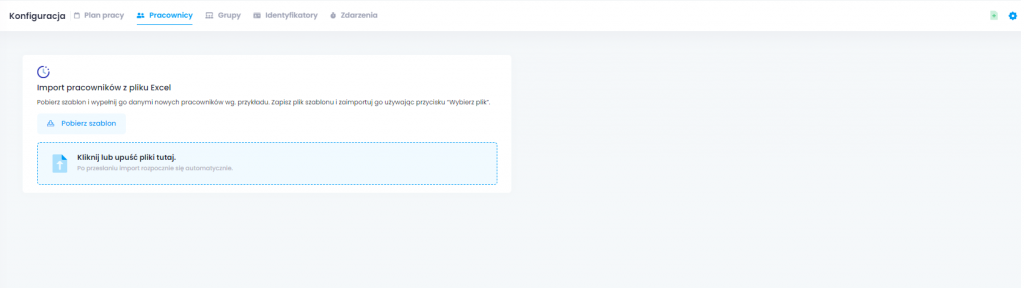
If you have a larger number of employees, you can use the data import option.
Path:
Konfiguracja → Import → Pracownicy
Download the ready-made Excel template.
Fill in the template according to the instructions.
Upload the file to the system and wait for confirmation that the process has finished.
📌 Convenience
Import is an ideal solution for companies with many employees that want to quickly enter data into the system.
3. Archiving employees
An employee can be moved to the archive in two cases:
- Employment ended, but historical data must be kept.
- Temporary suspension of using the system.
People in the archive:
- Do not count towards the employee limit.
- Have an automatically set registration end date.
- Cannot log in to the system.
4. Password reset
As an administrator, you can reset an employee’s password.
Path:
Pracownicy → Lista pracowników → Ikonka akcji → Reset hasła
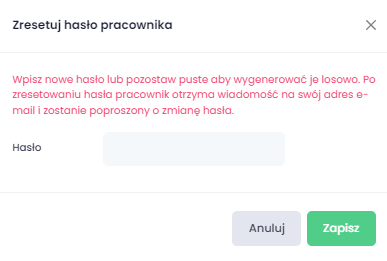
Reset options:
Automatically generate a new password.
Manually set a new password.
📌 Practical tip
When resetting a password, make sure the employee knows how to change it after the first login.
Thanks to flexible user creation and management options, RCPonline lets you tailor the system to your company’s needs. Have questions? Contact our support team!