
What is the Kiosk app and how does it work?
The Kiosk RCP app is a tool installed on devices rented by companies as part of the RCPonline system. Its main purpose is to protect the device against unauthorized interference by employees, so the device can be used only for time registration.
Kiosk RCP app features
- Device protection:
- The app blocks access to other apps and device settings.
- Employees can use only the time registration functions.
- Improved data security:
- Protects the device from unauthorized changes in settings.
- Prevents installation of unwanted apps.
- Intuitive interface:
- Employees can easily register events with minimal training.
How to disable Kiosk mode?
If needed, you can temporarily disable the Kiosk app and access the full device functionality.
- Go to the Kiosk app home screen.
- Open the “Settings” section.
- Enter the unlock PIN code (you can obtain the code from an RCPonline consultant).
- In the settings menu:
- Uncheck “Enable Kiosk mode”.
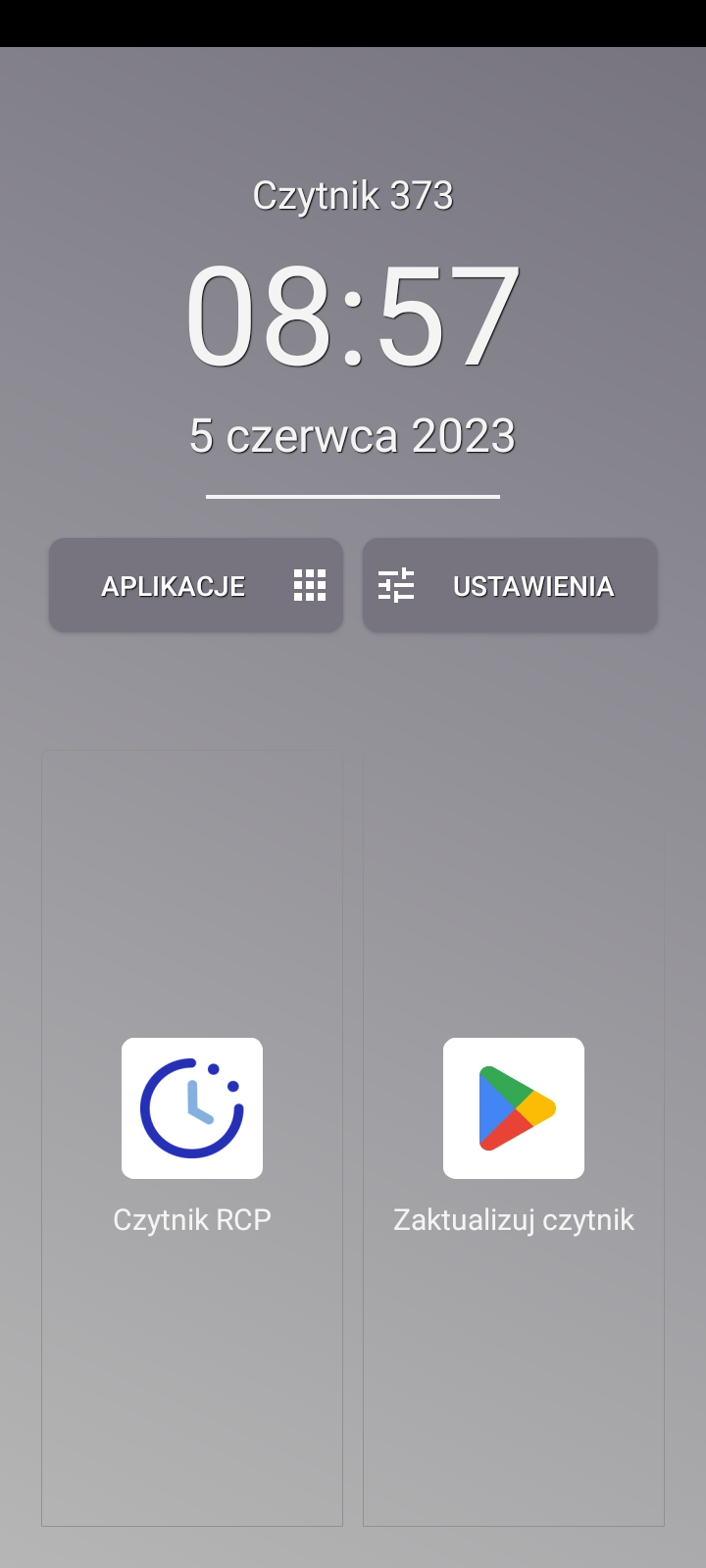
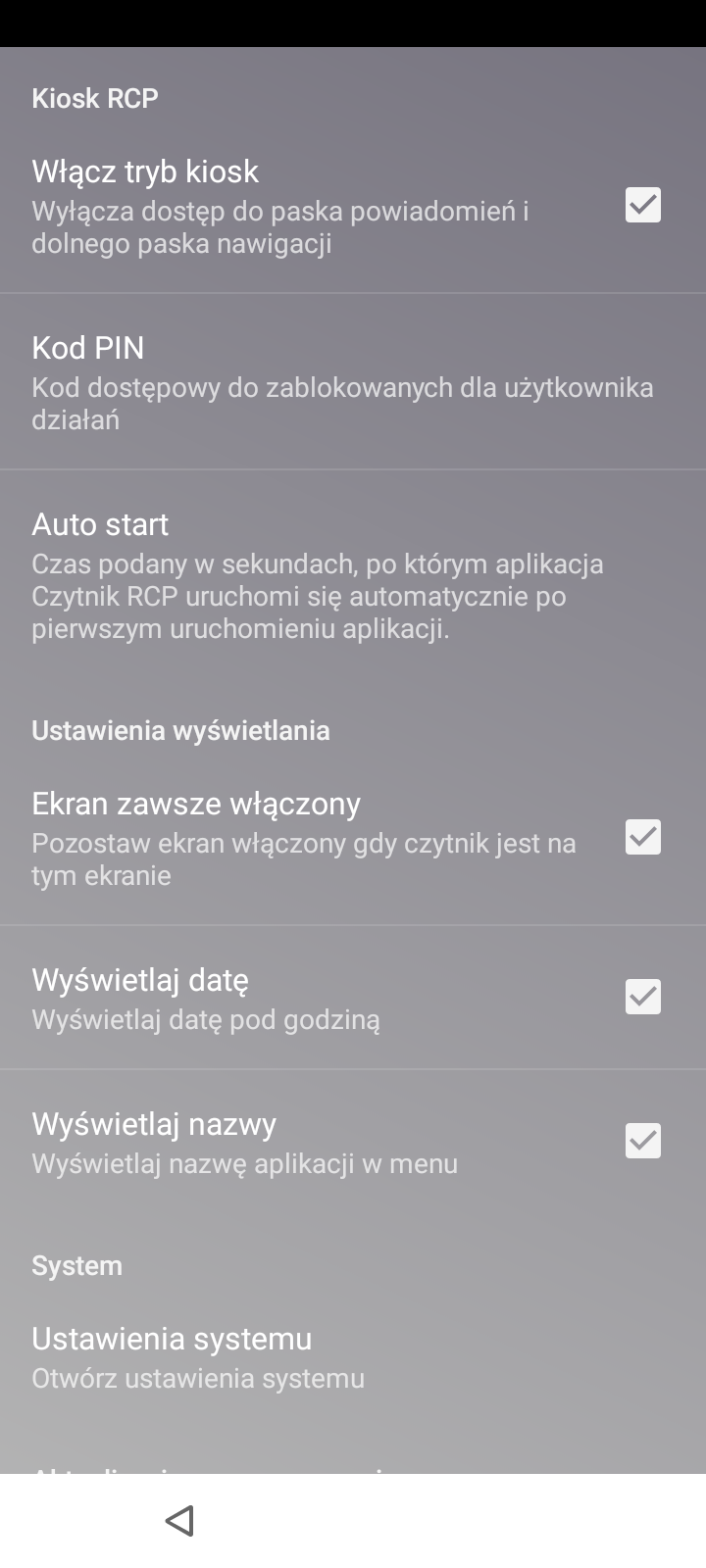
After completing these steps, the device will switch to standard mode, allowing access to other apps and system settings.
📌 Note
After disabling Kiosk mode, the device becomes fully accessible, which means the system and apps can be modified. Use this option with caution.
How to re-enable Kiosk mode?
- Open the device settings menu.
- Enter the PIN code.
- Check “Enable Kiosk mode”.
After saving changes, the device will return to secured mode, limiting access exclusively to the Kiosk RCP app.
The Kiosk app is a simple but effective way to increase the security of devices used in the RCPonline system. If you have questions about configuration or want to obtain the PIN code, contact our support team.